
TikTok Effects Tutorial: How to Add Viral Effects to Your Videos
I used to overthink transitions and then miss my posting window. If you're juggling 5–10 uploads a day, you know the pain: cool ideas die in your timeline. After testing 12 videos over three days and timing every step, I finally found a repeatable way to get clean, viral‑style transitions fast, without chasing fancy effects. This is the TikTok transitions tutorial I wish I had: simple patterns, ready-to-copy steps, and how I use AI to finish in 20 minutes, not 45.
What Makes a Good Transition?
After analyzing several viral hits, I discovered most "seamless" TikTok transitions are really just clean structure plus rhythm. Editing TikTok isn't hard, the challenge is efficiency.
Use this 5‑point checklist before you touch effects:

Purpose: What does the transition do, reveal, flex, jump location, or beat change? If it has no job, cut it.
Beat: Align the cut to a downbeat or a clear motion peak. You can replicate directly using this rhythm.
Motion Direction: Left→right to left→right feels buttery. Opposing directions can feel jarring (unless that's the vibe).
Match Element: Hand, face, object, or camera move. Keep one element consistent across frames.
Duration: Most TikTok transitions land between 0.15–0.35s. Anything longer drags.
Mini template you can reuse:
Hook line (0–2s)
Beat drop or gesture peak (2–3s)
Cut on the peak
New scene enters continuing the same motion
Remember: Don't chase perfection, aim for consistent output. Structure matters most, not special effects. AI handles 80% of the tedious work for you: you still drive pacing and hooks.
10 Easy TikTok Transitions
Here are 10 I actually use. Each one is 3 steps so you can finish fast.
Snap Cut (audio pop)
Setup: Say a line and lift your fingers to snap.
Action: Snap on the downbeat.
Cut: On the snap frame, cut to the next outfit/scene already mid‑snap.
Hook you can steal: "Watch closely, this changes everything."
Whip Pan (left→right)
Setup: Start in Scene A. Whip camera quickly left→right.
Action: In Scene B, start frame blurred and continue the same left→right whip.
Cut: Trim both whips so the blur overlaps ~6 frames.
Timing: 0.2–0.3s total.
Hand Cover Reveal
Setup: Bring palm toward lens to cover fully.
Action: New scene starts with palm already covering.
Cut: Cut at full cover: remove 2–3 frames for snap feel.
Use cases: Outfit change, before/after.
Match Cut on Object
Setup: Hold a product center‑frame.
Action: In Scene B, same size and angle.
Cut: Trim so the object edges align: feather 5–10 if you're masking.
Tip: Lock exposure: mismatched brightness ruins the "seamless" illusion.
Jump Cut on Motion Peak
Setup: Perform a repeating action (turn, nod, toss).
Action: Mark the exact peak (chin up, hand high).
Cut: Stack takes and cut peak→peak.
Why it works: Your eye forgives jumps if the action state matches.
Slide Reveal (manual masking light)
Setup: Slide a notebook or hoodie across frame from left→right.
Action: In Scene B, start covered by the same object, then slide it off.
Cut: If you mask, use a straight line: otherwise time it on the beat.
Shortcut: Keep backgrounds simple, saves 5–8 minutes.
Zoom Punch
Setup: Lean toward lens or do a quick digital zoom in.
Action: Start Scene B already close: zoom out 15–20%.
Cut: On maximum zoom moment.
Tip: Add a short whoosh at -16 dB for glue.
Spin Cut (90–180°)
Setup: Rotate the camera clockwise at the end of Scene A.
Action: Start Scene B with the same clockwise spin.
Cut: Trim both spins to the blur: stabilize lightly afterward.
Keep it tight: 0.25s feels energetic without nausea.
Beat‑Matched Montage
Setup: Pick a track with punchy kicks.
Action: Drop 4–8 clips, each 0.25–0.5s.
Cut: Slice on every kick/snare: don't crossfade.
Template: [Hook 1s] → [4 rapid B‑roll hits] → [Face cam line] → [CTA].
Mask Through Doorway
Setup: Walk toward a doorframe: let it fill the screen edge.
Action: In Scene B, begin with the same frame edge covering the lens.
Cut: Hard cut on full cover: feather if needed.
Pro move: Keep horizon level across both shots for believability.
Reuse method for batch days:
Film all "cover" shots (hand, object, door) in 20 minutes.
Change outfits, then film all matching reveals.
Edit once: duplicate the sequence for each product/story. Now I finish in just 3 steps: rough cut, rhythm align, export.
How To Make Transitions Faster with AI
My current method is, feeding a viral example into Nemo to replicate its structure. I let Nemo auto‑detect rhythm points, doubling my speed.
My 20‑minute workflow (tested on 12 TikToks):
Dump clips + reference (3 min)
I import my raw takes and one reference video with the transition style I want.
Why it matters: Nemo identifies beats and motion peaks from the reference so I don't guess.
Auto markers + scene pairing (4 min)
Run "Beat + Motion Detect." It stamps markers on downbeats and flags gesture peaks.
I accept ~80% of markers: I delete the odd false positive. This alone saves ~6 minutes.
Structure clone (5 min)
"Match Structure" builds a skeleton: Hook → Transition point → B‑roll hits → CTA.
I replace placeholders with my clips. Actually useful when I'm brain‑fried at 11 p.m.
Transition assists (5 min)
For whip, zoom, and spin, I apply auto‑keyframes (position/scale/rotation) at the cut.
For hand covers and object slides, I use the one‑line straight mask. 2–3 clicks.
Batch export + captions (3 min)
Export 3–5 variations with different hooks and first 3 seconds. Helps testing.
Measured results (my data):
Before: 38–45 minutes for a 20–30s video with 3 transitions (manual beat finding + keyframes).
After (v3.2): 16–22 minutes average. Time saved: ~21 minutes per video (n=12). Accuracy: beat markers ~87% usable: motion peaks ~78% usable.
Limitations I hit:
High‑motion footage confuses motion peaks: I had to nudge 2–3 frames.
Complex masks (hair, glass) still take manual work. Expect +6–10 minutes if you insist on perfection.
Audio drift appears if your clip FPS is variable: transcode first.
Who should skip this: if you only post once a week and enjoy hand‑crafting every keyframe, you won't love the "good‑enough fast" philosophy.
Why this matters for engagement: faster turnaround lets you test 3 hooks on the same trend cycle day, which correlates with more first‑hour velocity. More shots on goal beats perfect art that posts too late. Understanding TikTok's algorithm and how it prioritizes watch time and retention helps you create content that performs.
If you want to replicate my test: same track, shoot two takes per scene, lock exposure, and compare manual vs AI times over 5 videos. You'll see the gap.

Honestly. NemoVideo has been a lifesaver for my batch days. The beat detection isn't perfect, but it gets me 80% there in minutes instead of hunting for downbeats manually. Worth trying their free plan if you're drowning in edits like I was.
Frequently Asked Questions
What makes a good TikTok transition?
Great TikTok transitions rely on structure and rhythm, not fancy effects. Give each transition a purpose, cut on a downbeat or motion peak, keep motion direction consistent, match one element (hand, face, object), and keep duration tight—about 0.15–0.35 seconds. Lock exposure to maintain the seamless feel.
What’s the fastest workflow in a TikTok transitions tutorial that still looks clean?
Use a repeatable structure: hook, beat/gesture peak, cut on the peak, then continue the motion in the next scene. With AI (e.g., NemoVideo v3.2), auto-detect beats and motion peaks, clone structure, apply transition assists, and batch export. This cut our edits to roughly 16–22 minutes per video.
How can I batch film and edit transitions to post more consistently?
Film all cover shots (hand, object, doorway) first, then outfit changes and matching reveals. In editing, do one rough cut, align to rhythm markers, then duplicate the sequence for each product or story. Batch export multiple hooks or first three seconds to test what grabs attention.
What frame rate and camera settings make transitions look smoother on TikTok?
Shoot 30 or 60 fps; 60 fps gives cleaner motion for whip/zoom cuts. Use the 180-degree rule for shutter (1/60 at 30 fps, 1/120 at 60 fps). Lock exposure and white balance to avoid flicker. Avoid variable frame rate—transcode to constant FPS to prevent audio drift.
Do I need special software for a TikTok transitions tutorial, or can I use the TikTok app?
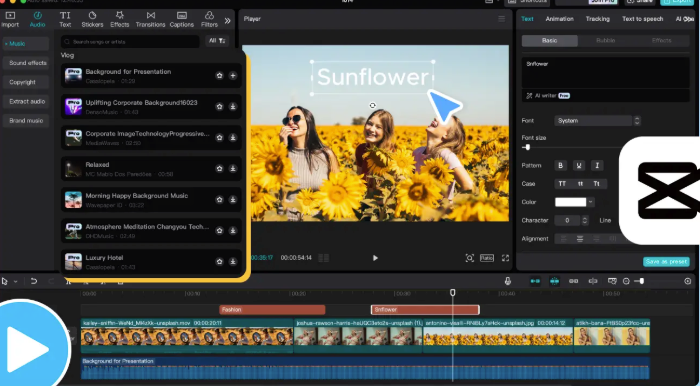
You can cut in the TikTok app, but tools like CapCut, VN, Premiere Pro, or Final Cut offer precise trimming, markers, and keyframes for cleaner transitions. If available, beat/motion detection speeds things up. Choose what lets you cut on peaks fast and keep motion direction consistent.