
NemoAgent User Guide
Your AI Viral Marketing Video Editor
NemoAgent is a conversational AI video editing agent designed to help anyone turn ideas into ready-to-publish, shareable videos. Just drop in any file or link, and tell Nemo what you want — a script, a video, the pacing, or the style.
NemoAgent hunts, analyzes, and recreates viral videos for you.
What’s more, it handles all the tedious organizing and editing work.
No more dirty work. NemoVideo delivers — instantly.
1. Start a New Project
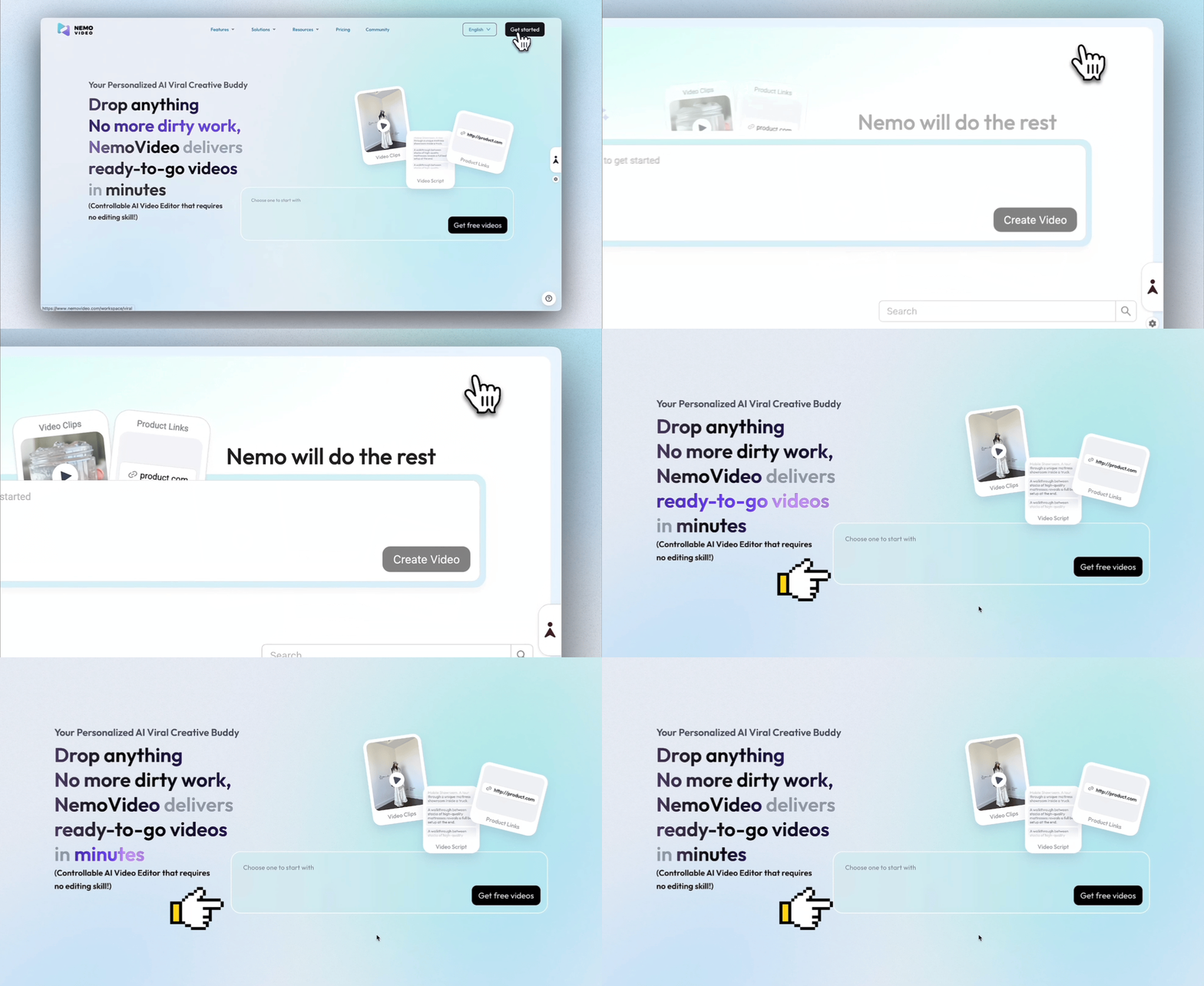
Click the "Get Started" button on the top right of the NemoVideo homepage, or simply click the chat box in the center to begin a new project.
2. Import Assets or Links
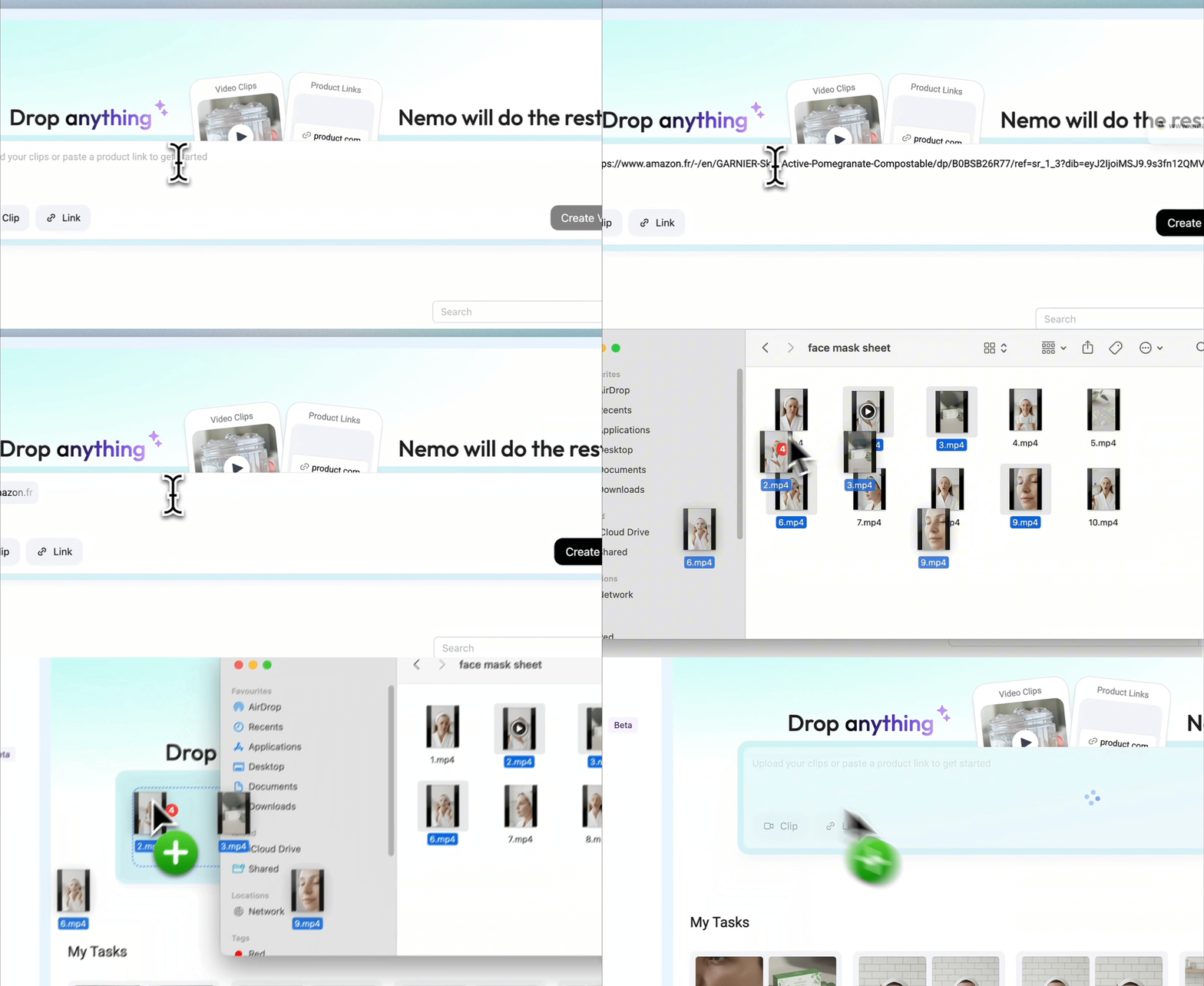
Paste your product link (e.g., Amazon URL) into the chat box, or click the upload button to import local video clips, documents, or cloud files.
3. AI Analysis & Brief Generation
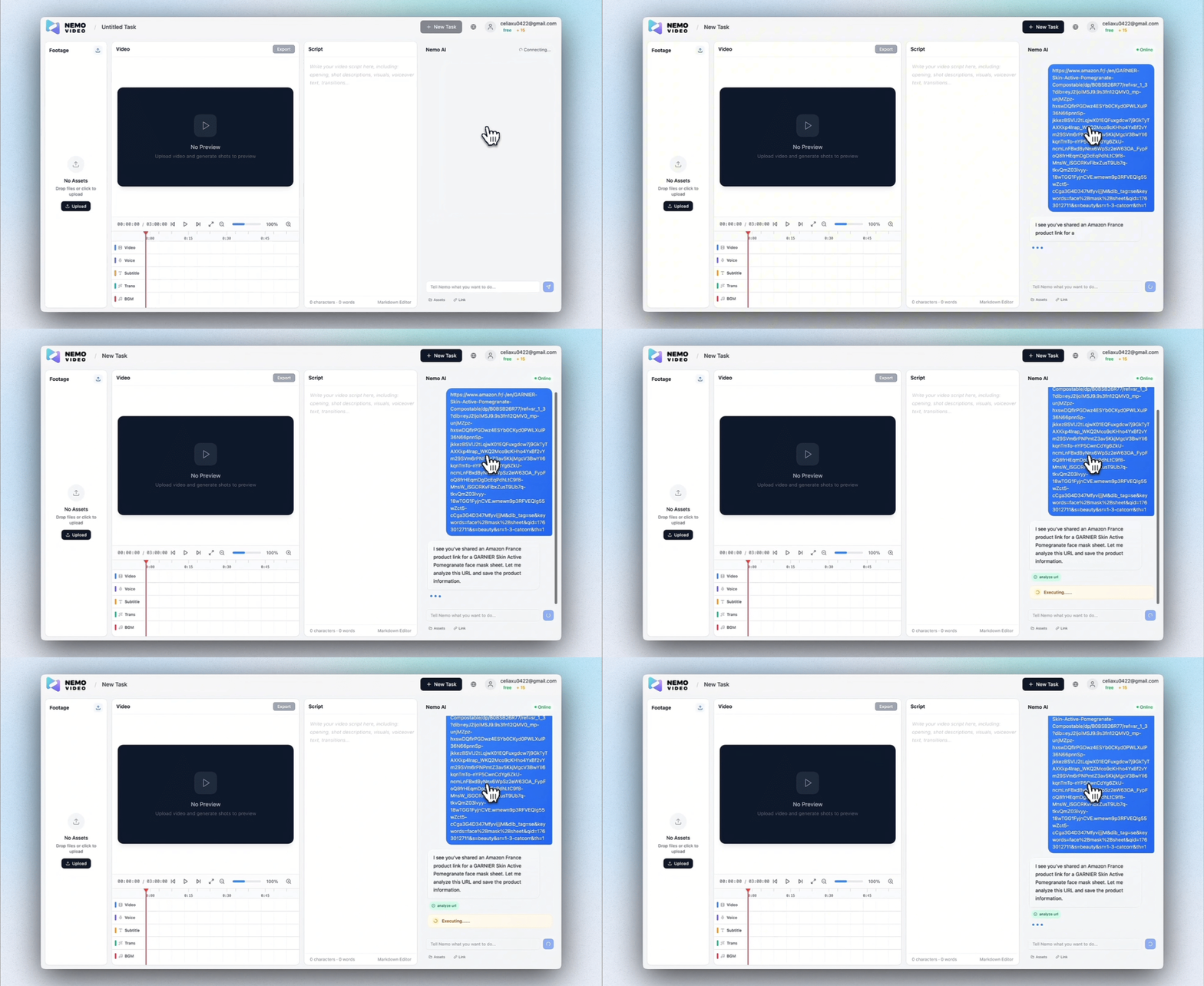
After clicking "Create Video," Nemo AI automatically analyzes your input to identify key selling points, target audience, and unique value propositions, generating a project brief.
Learn more about Viral+ Studio
4. Discover Viral Inspiration from Similar Products
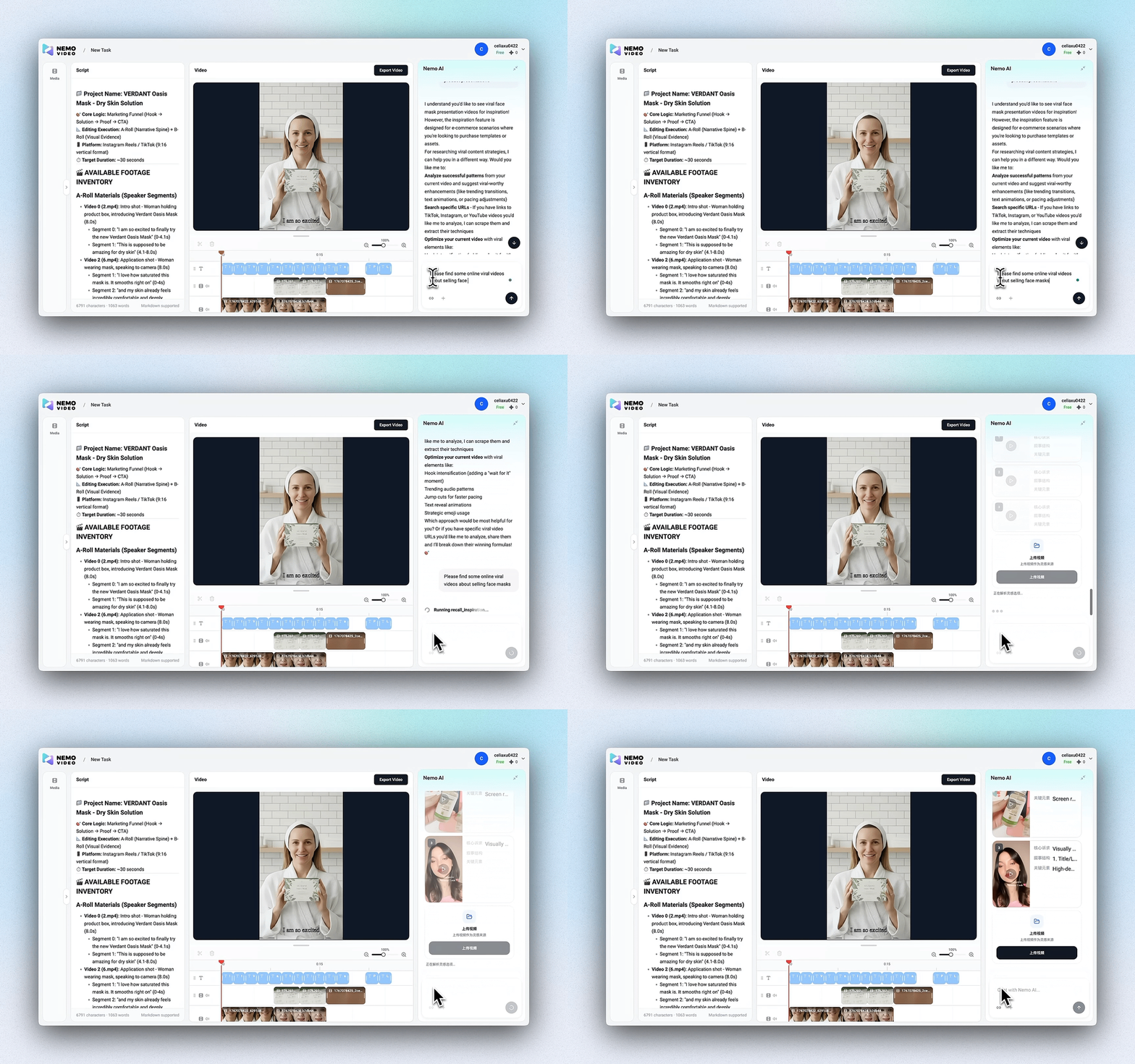
You can simply tell Nemo: “Find viral videos for similar products.”
Nemo’s Inspiration Center will search across the web and curate three high-performing viral examples, helping you quickly understand what content structures, pacing, and creative angles are working right now.
Learn more about Inspiration Center
5. Generate Video Script
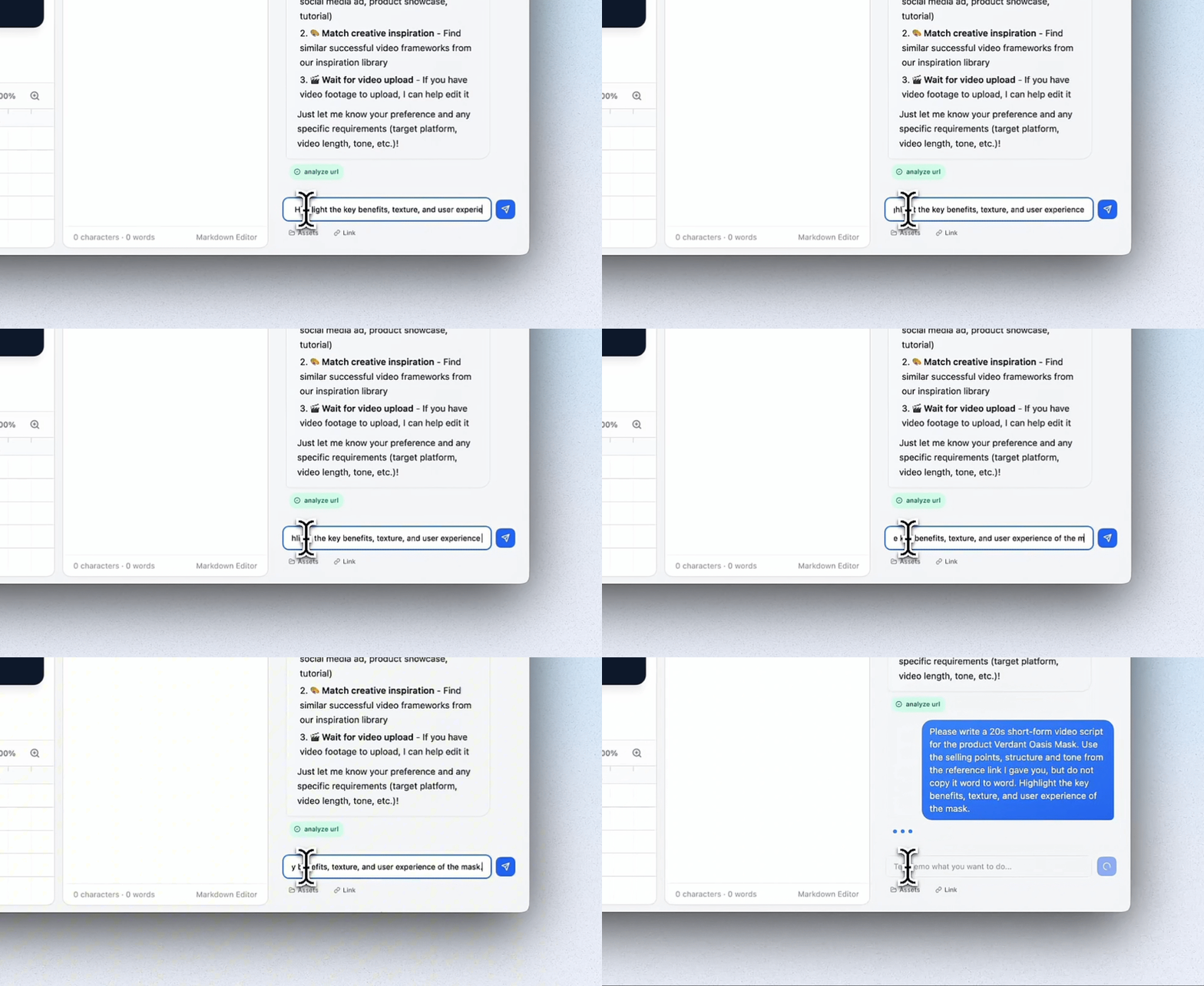
Instruct the Nemo Agent by specifying the video length or type (e.g., "Write a 20s short-form video script for this product"). The AI will instantly generate a script based on the analysis.
6. Review and Edit Script
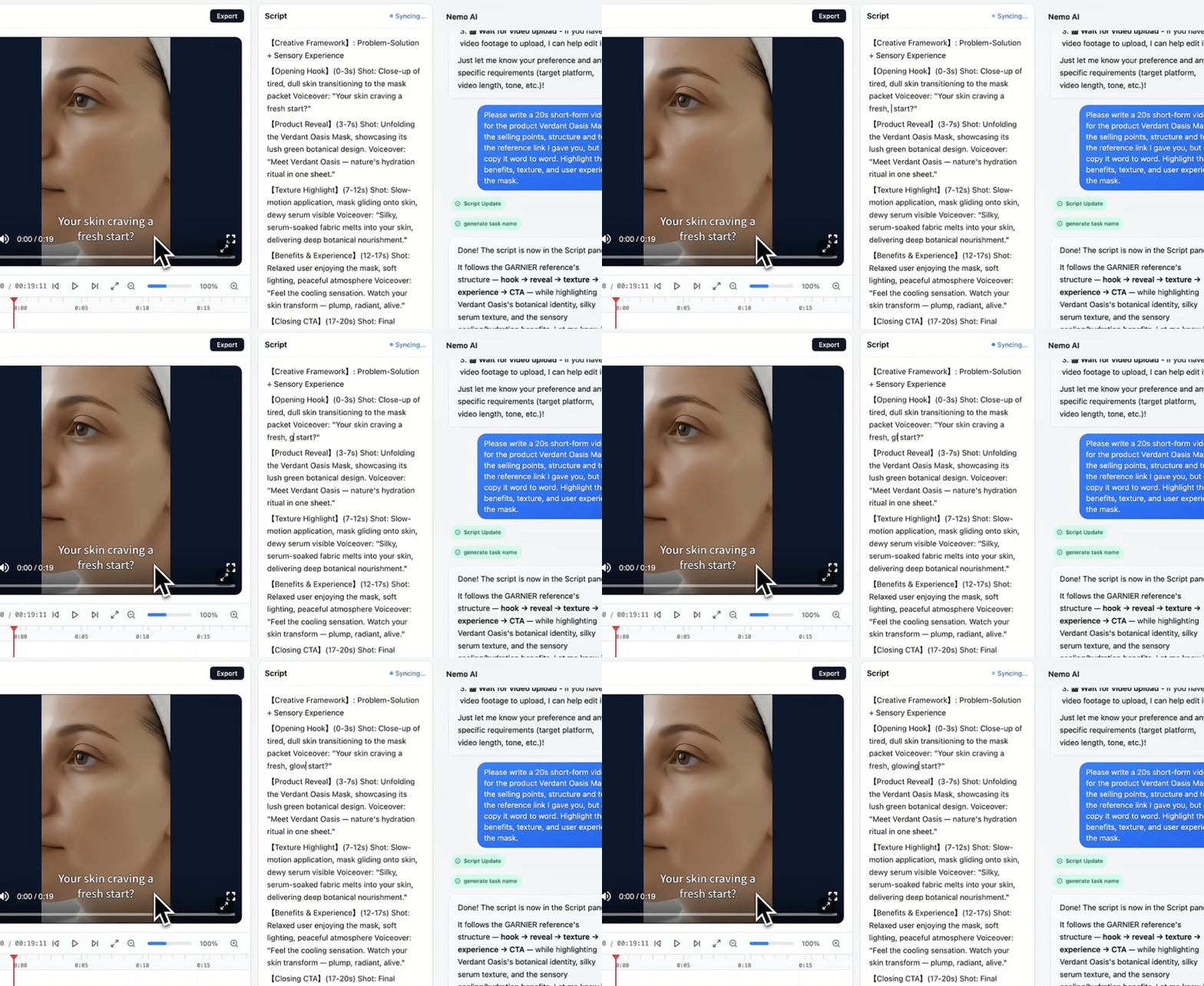
Review the generated script in the center panel. The script is fully editable, allowing you to manually adjust the copy to match your brand style.
7. Generate First Draft
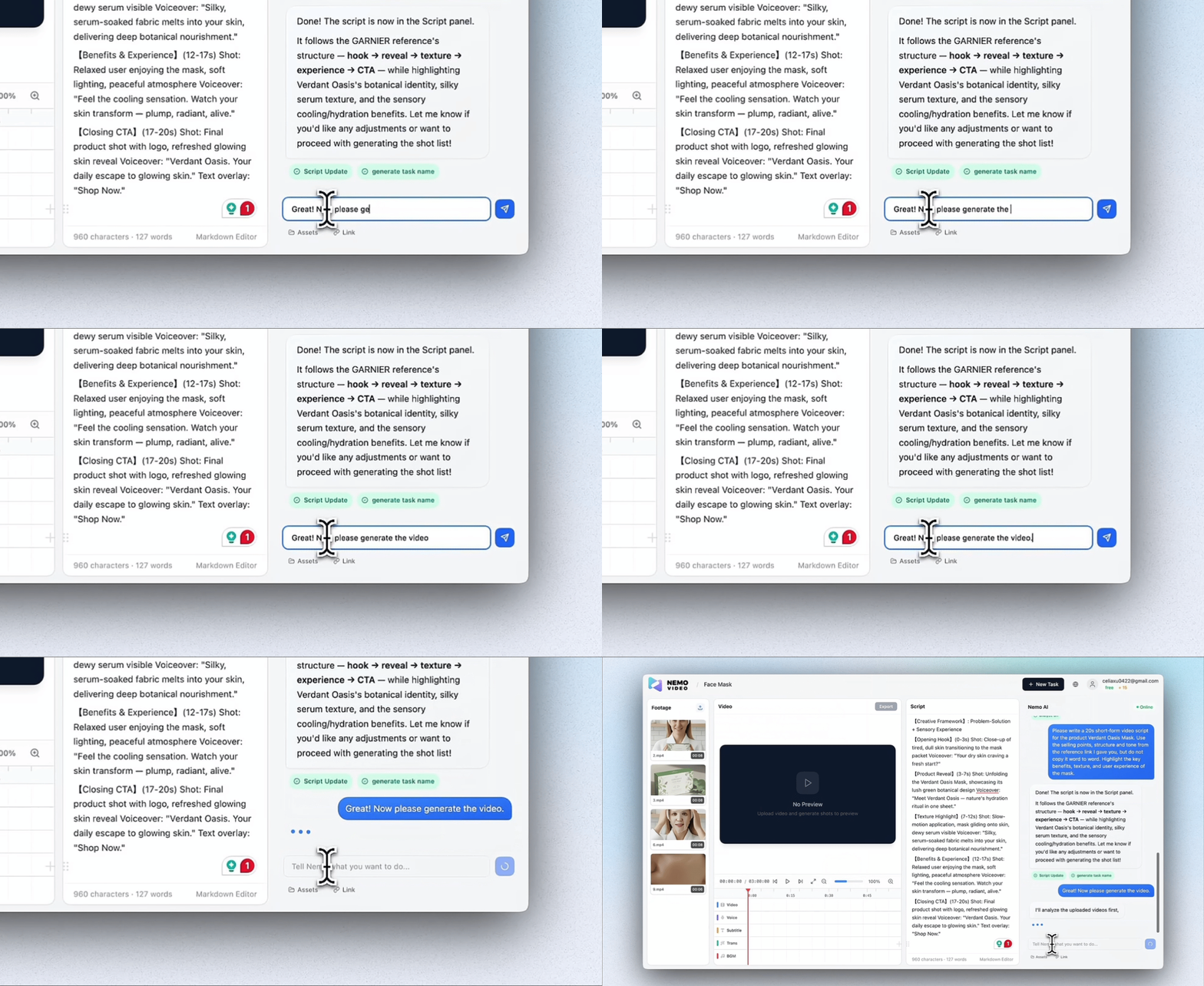
Once the script and assets are ready, tell Nemo to generate the video in the chat box (e.g., "Please generate the video"). The system will automatically sync assets, transitions, and music.
Learn more about Smart Caption
8. Drag & Adjust Video Clips
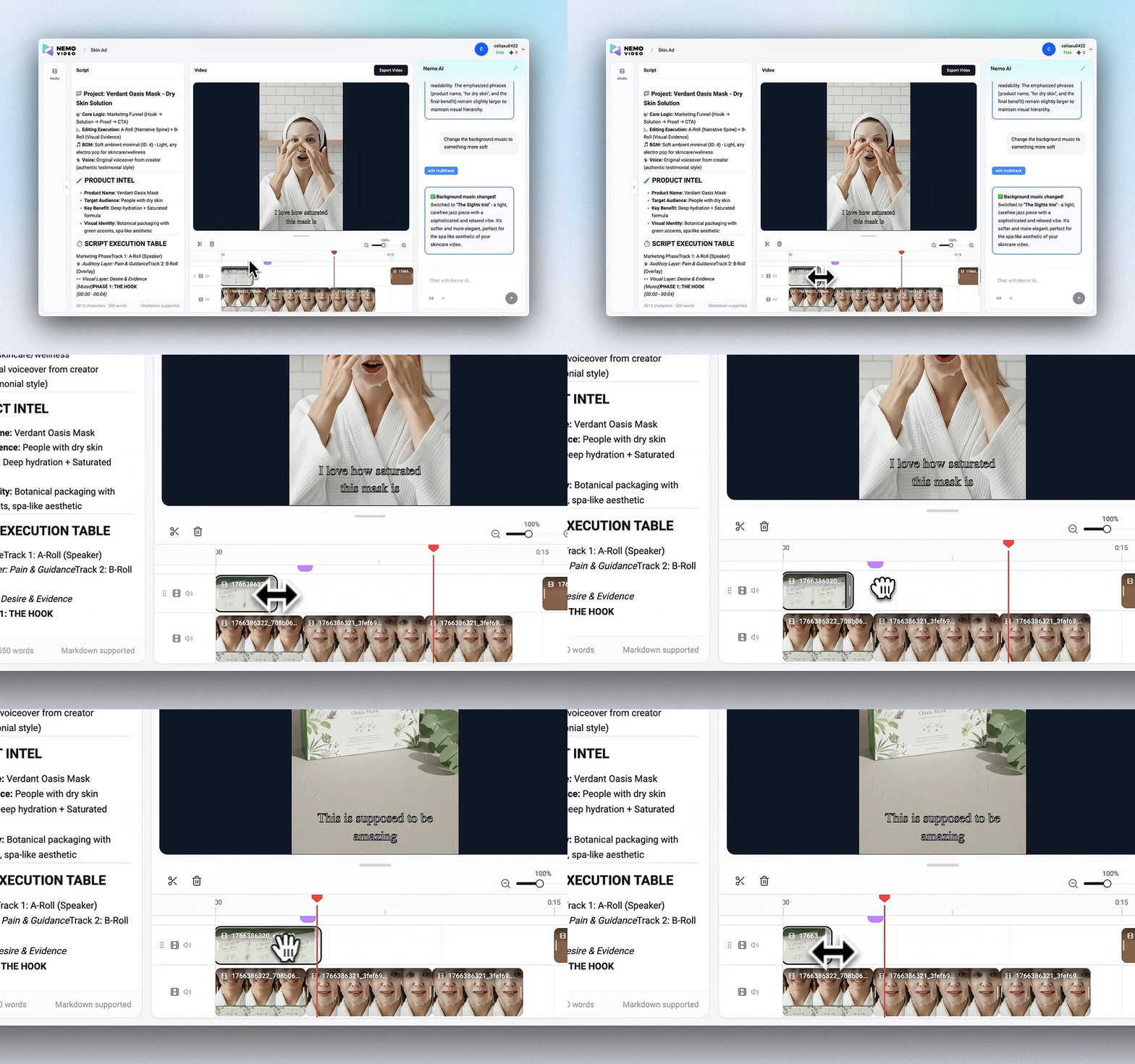
After the video is generated, you can drag clips directly on the timeline inside the editor to fine-tune your video. Easily extend or shorten each clip to adjust the overall pacing—no complicated editing required.
9. Edit by Talking to Nemo
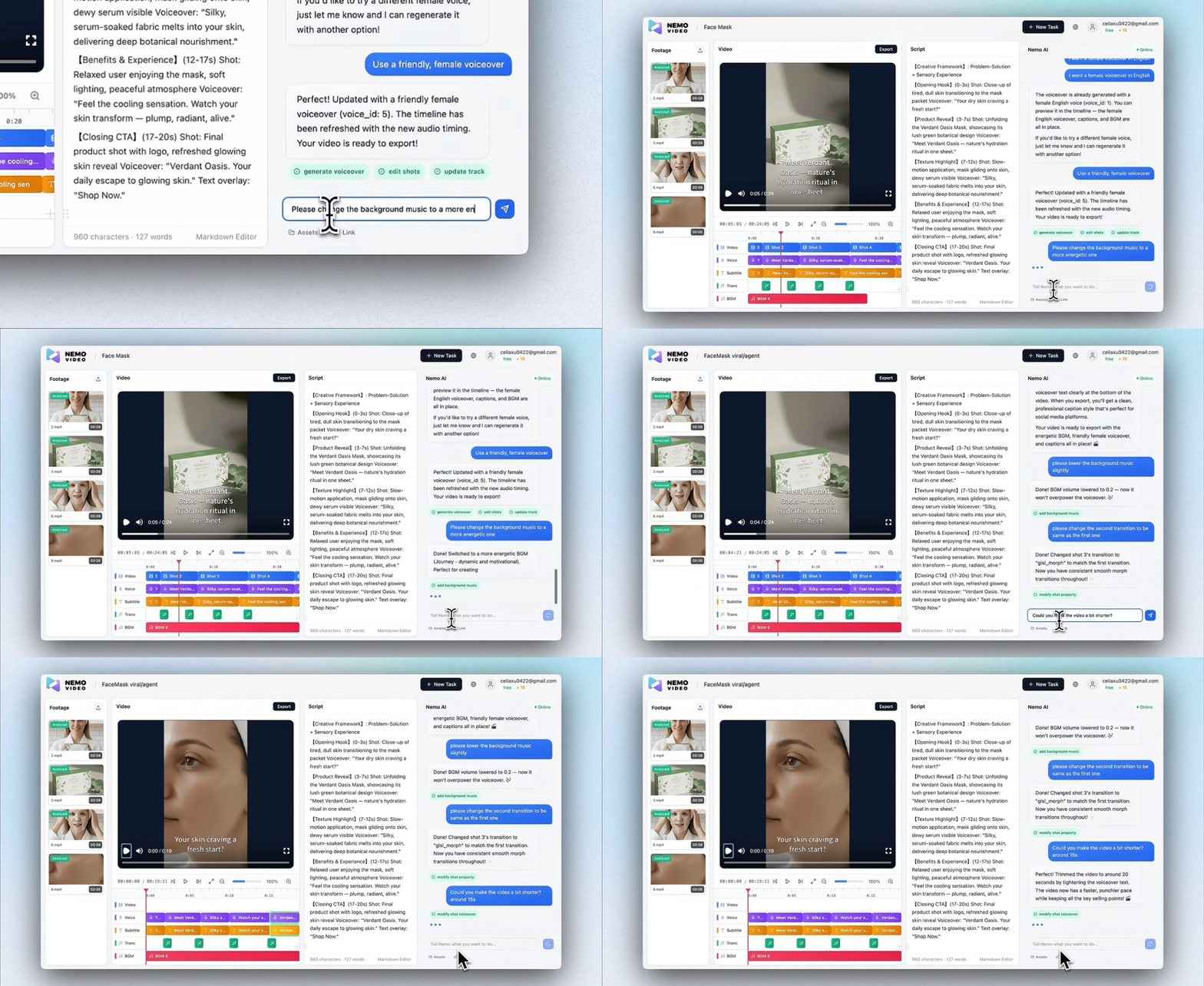
Simply tell Nemo what you’d like to adjust, and the agent handles the rest.
You can change the voiceover or background music, fine-tune the pacing, shorten or extend the video, or update transitions — all through natural language. Every change is applied instantly, keeping the video smooth, natural, and polished.
10. Export Final Video
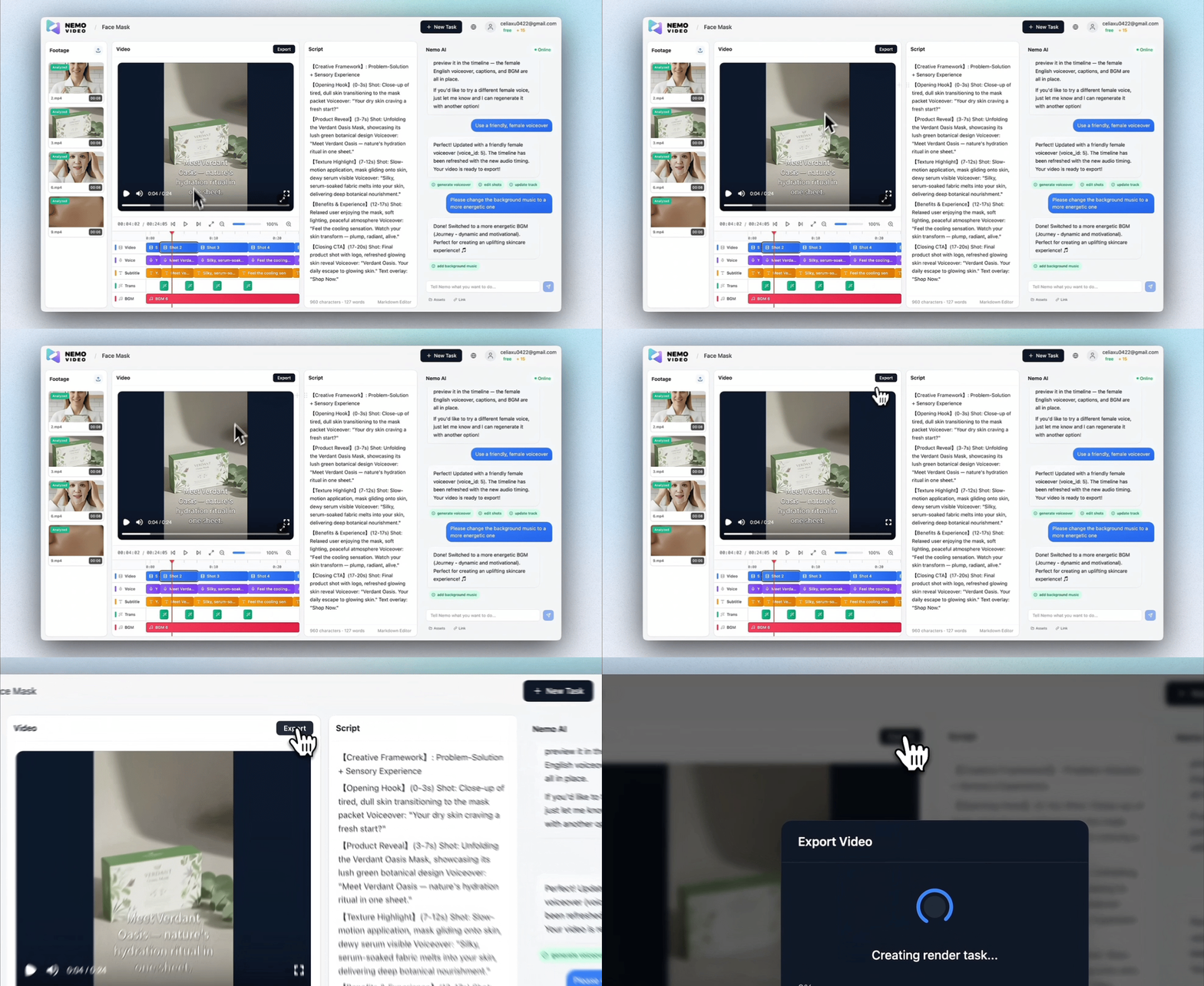
Once you are satisfied with the result, click the "Export" button in the top right corner to download your final video.