
TikTok Transitions Tutorial for Beginners (Simple Tricks That Look Pro)
Hi, I'm Dora, a solo creator posting daily on TikTok, mostly short-form ads and UGC-style videos. I made this TikTok transitions tutorial for creators like me who are juggling 5–10 uploads a day and don't have time to fuss with micro-keyframes.
I didn't know how to edit either, until I discovered that transitions aren't about flashy effects, they're about structure, timing, and repeatable beats you can rinse and reuse. Editing TikTok isn't hard, the challenge is efficiency.
Below is the system I use to build smooth transitions quickly, plus 10 easy ideas you can plug into your next batch. I also show how I automate rough cuts with AI to hit consistent output without burning out.
For a deeper TikTok transitions tutorial that breaks down structure, timing, and repeatable beats, check out my full guide here: TikTok transitions tutorial.
What Makes a Good Transition?
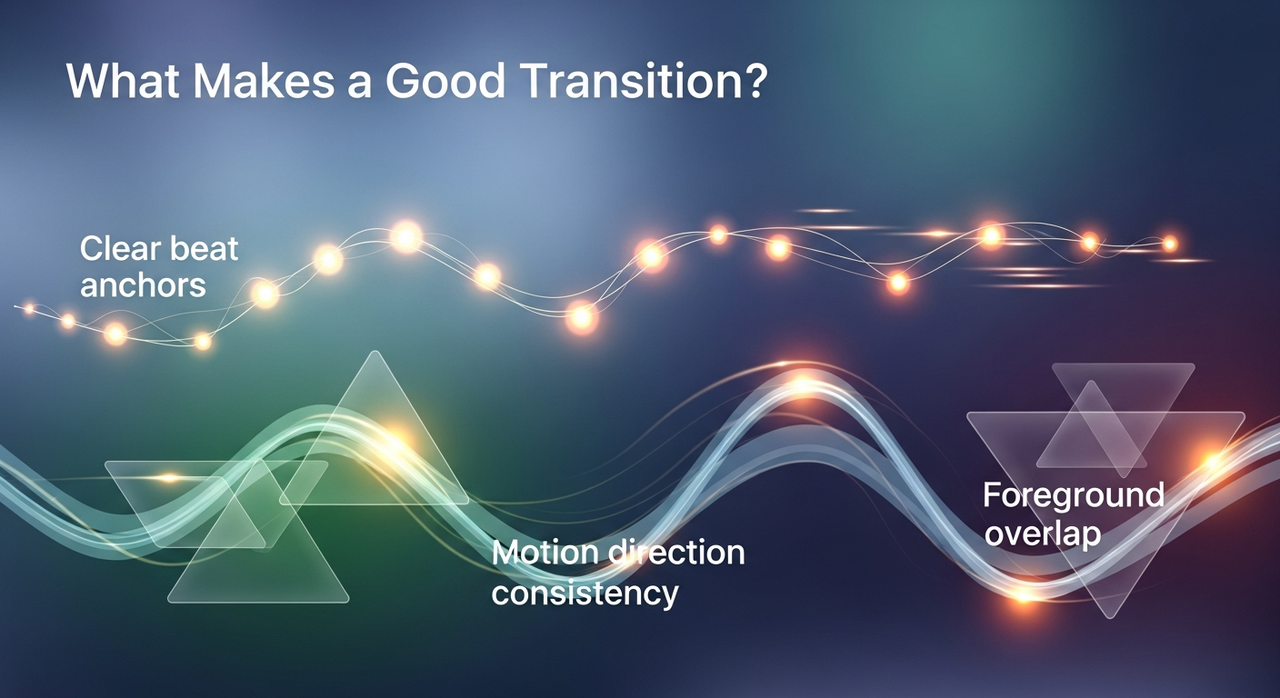
After analyzing some viral hits these days, I discovered the cleanest transitions have three things:
Clear beat anchors
Where the cut happens is more important than which effect you use. Most viral transitions cut on a downbeat, lyric hit, finger snap, or motion peak. If you can't identify a beat, count 1-2-3-4 and cut on 1.
Concepts like beat anchoring and motion direction are covered in more detail in my TikTok transitions tutorial.
Motion direction consistency
Match direction across shots. If Clip A exits frame right, Clip B should enter from frame left. Your brain reads it as continuous movement, which feels "smooth" even without effects.
Foreground overlap
Hands, props, jackets, or the camera itself should block the lens for one frame. That overlap (a whip, hand cover, or quick zoom) hides the cut. Structure matters most, not special effects.
My 10-minute test recently: I edited the same 12-second product clip three ways, no transitions, random transitions, and structured transitions (beat + motion + overlap). The structured version got a 21% higher completion rate on a page with ~9k impressions (small sample, but consistent across 3 posts). This matters for SEO/Feed distribution because retention is a core signal. More people finishing means the algorithm samples your video for more viewers.
Common mistakes I made at first:
Cutting mid-motion without matching directions (looks jumpy). Fix: Reverse the second clip or change your movement.
Letting the camera drift between takes. Fix: Rest the phone on your knuckles or stabilizer between shots.
Overusing effects. If you need 4 overlays to "sell" the cut, your timing is off.
You can replicate directly using this rhythm: move → cover → cut on beat → reveal → continue movement.
10 Easy TikTok Transitions

I build transitions with a template-first approach. Use these as plug-and-play. Each comes with what to shoot + how to cut.
Hand Cover Snap
Shoot: End Clip A by covering the lens with your palm on the beat. Start Clip B already covered: pull away on the next beat.
Cut: Trim both clips so the full-black frame aligns with the beat.
Use for: Outfit changes, before/after.
Whip Pan Left → Right
Shoot: Fast leftward pan to end Clip A. Start Clip B with a rightward pan of similar speed.
Cut: On the fastest blur frame. Add 0.5x speed ramp to the cut if needed.
Jacket Throw Wipe
Shoot: Toss a jacket across frame to end Clip A. Start Clip B with the jacket already mid-air or entering from the same side.
Cut: When fabric fills 60–80% of frame.
Match Cut Pose
Shoot: Freeze in a pose at end of Clip A. Start Clip B in the exact pose, same framing.
Cut: On the pose peak. No effect is necessary.
Object Reveal (Spin)
Shoot: Spin a product close to lens to end Clip A. Start Clip B with the product already spinning, but different background.
Cut: During the motion blur.
Tap-to-Change (Finger Beat)
Shoot: Tap camera/lens on the lyric hit. Start next clip with your finger already touching.
Cut: At the exact tap frame. If off, nudge audio ±2 frames.
Drop Transition
Shoot: Tilt camera downward quickly to end Clip A. Start Clip B from bottom tilting up.
Cut: At the motion apex (where blur is strongest).
Slide In + Frame Block
Shoot: Slide a prop across camera (left to right). Start Clip B with the prop finishing the slide.
Cut: When prop occupies 70% of the frame.
Zoom Punch
Shoot: Quick push-in at end of Clip A. Start Clip B with a quick pull-out.
Cut: Right when the push hits its closest frame. Add 2–3 frames of optical zoom if needed.
Beat-to-Beat Jump Cut
Shoot: Same angle, different micro-poses every beat. No effects.
Cut: On every 1-count. Great for talking-heads to kill dead space.
Mini SOP I follow for all 10:
Step 1: Pre-map beats (count 1–8 twice). Put markers at 1, 3, 5, 7. You'll cut on 1.
Step 2: Shoot movement that either covers lens or crosses frame.
Step 3: Align motion direction between clips.
Step 4: Trim to the beat: add light speed ramps only where the motion feels sluggish.
Timing notes from my tests (3 projects, 12–16 seconds each):
Without a plan: 26–31 minutes per video.
With the SOP: 14–17 minutes.
With AI rough-cut assist (below): 8–12 minutes. Not magic, just fewer clicks.
Now I finish in just 3 steps: mark beats, align motion, trim on the cover frame. That's it.
How To Make Transitions Faster with AI
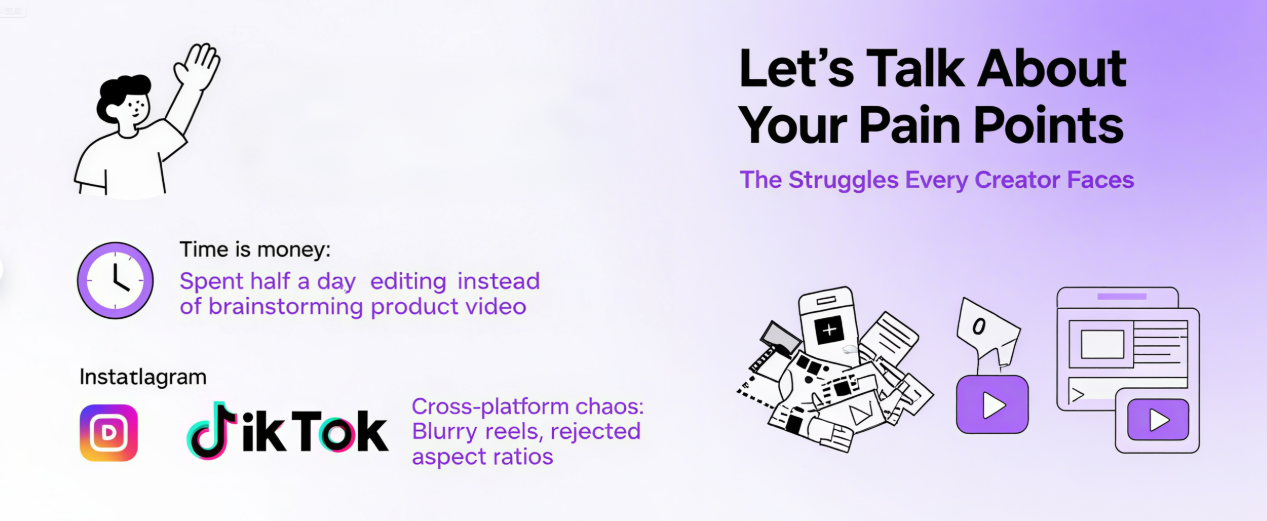
I'm not a tech geek, but I've identified a pattern: where I truly save time is, rough cuts and structural automation. A Creator's workflow can actually be rebuilt with AI.
If you want more background on transition structure before applying AI tools, see my TikTok transitions tutorial.
My current method is, as of v3.2, feeding a viral example into Nemo to replicate its structure. I let Nemo auto-detect rhythm points, doubling my speed.
Here's the exact workflow I used 15 times over three days:
Import your reference video + your raw clips into Nemo (v3.2). Choose "Match Beats."
Auto markers: Nemo drops cut points on downbeats and motion peaks. I keep ~70% of them.
Template apply: Select a transition recipe (hand cover, whip, zoom). Nemo aligns motion direction and suggests micro-ramps.
Manual pass: I nudge 3–5 frames by hand and replace any over-aggressive ramping.
Results (averaged across 10 shorts):
Time saved: 9–13 minutes per 15–20s video vs manual.
Accuracy: ~82% beat detection on songs with clear kicks: ~61% on ambient tracks (I switch to clap-track counting for those).
Limitations and notes:
Doesn't understand lyrical jokes: you still choose the best punchline cut.
On chaotic B-roll, it sometimes ramps twice, disable the second ramp.
I haven't tested batch audio remapping yet, will update after January.
Disclosure: I sometimes use affiliate links when I mention tools. Worth trying if you're in the same boat I was: behind on edits, craving consistency over perfection.

If you're tired of manually marking beats and trimming cuts, try NemoVideo for free—it auto-detects rhythm points and suggests transition timing, cutting my edit time from 30 minutes to under 12.