
How to Use TikTok Viral CapCut Template Links (Step-by-Step)
I'm Dora. One months ago, I was trapped in the edit hole, 1–2 videos a day, max. I tried every TikTok viral CapCut template link I could find. Quick wins, yes. But everything started to look the same: fixed rhythm, fixed text, zero edge. The breakthrough came when I stopped chasing effects and started cloning structure. If you're searching "tiktok viral capcut template link," here's how I actually use them now, and how I recreate their structure with AI to push 5–10 posts a day without burning out.
What Are TikTok Viral CapCut Template Links?
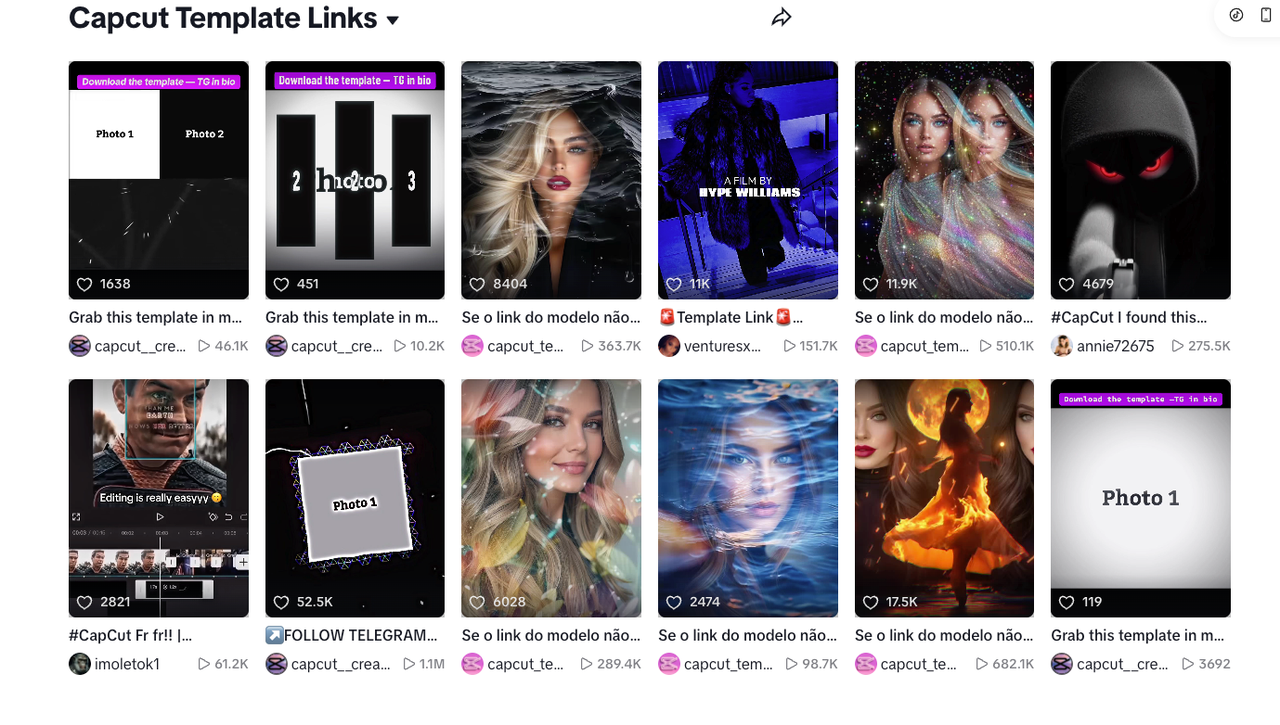
CapCut template links are pre-built editing timelines you can open with one tap. They include a baked-in rhythm (cuts timed to the music), text layers, transitions, and placeholders for your clips. On TikTok, creators share these links so you can duplicate the vibe fast.
Why they're helpful:
Speed: you can go from raw clips to a finished post in 10–15 minutes.
Rhythm baked in: no manual beat matching.
Social proof: the format already proved it can get watch time.
But here's the catch I hit early: templates are fixed. If 10,000 people use the same beat drops and captions, you blend in. After analyzing 50 viral hits, I discovered the thing that travels isn't the exact effect—it's the structure.
Actually, viral structures all follow 4 patterns:
Hook → Problem → Snap Cuts → Payoff (UGC reviews, creator rants)
Pattern Interrupt → Countdown → Reveal (unboxings, glow-ups)
Listicle Beat → 1-2-3 Cadence → CTA (tips, recipes, travel hacks)
Question → Proof Mashup → Result (case studies, transformations)
You can replicate directly using this rhythm while swapping your footage, captions, and brand tone. That's why I don't rely on a single CapCut template link anymore—I use them as scaffolding, then customize.
How To Open, Edit, and Export
I didn't know how to edit either, until I discovered it's mostly a process. Here's my 12-minute SOP for template links.
Step 1: Open the template (1 min)
Mobile: tap the TikTok "Use template in CapCut" button or open the CapCut link in Safari/Chrome → Open in CapCut.
Desktop: paste the template link in your browser → Open in CapCut Desktop. If it prompts for assets, allow auto-download.
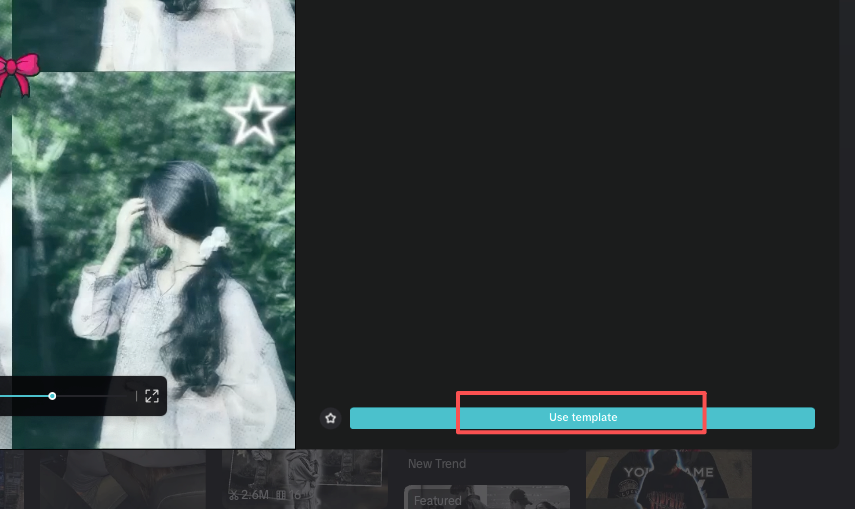
Step 2: Swap media fast (5–6 min)
Pre-select 8–12 clips in your camera roll labeled A, B, C… (saves 3–5 min).
In CapCut, tap each placeholder → Replace → choose clip. Don't over-trim yet; keep handles for micro-adjustments.
Text: change copy, not timing. Keep line lengths similar to preserve rhythm. I use 28–36 chars per line for mobile readability.
Step 3: Lock the rhythm (3–4 min)
Beat check: enable audio waveform. Each cut should sit ±2 frames around the peak. Nudge with 0.1s granularity.
Transitions: keep the template's default; change only if motion vectors fight your footage (e.g., spin + panning clip = motion soup).
Color: apply one global LUT; don't grade clip-by-clip when you're batching.
Step 4: Export (2 min)
Export 1080×1920, 24 or 30 fps (match template); 10–14 Mbps. Heavier bitrates don't help on TikTok compression.

Add captions in TikTok or CapCut auto-captions; tweak only your hook line for emphasis.
My timing after 15 tests over three days:
Before: 22–28 minutes per video.
Now: 11–14 minutes per video using the SOP above. Avg save: ~12 minutes/video, or ~2 hours across 10 posts.
Common pitfalls I hit (and fixes):
Audio rights: some templates use trending sounds that get swapped in TikTok. Always re-select the sound inside TikTok to avoid mismatches.
Fonts missing: CapCut substitutes fonts; double-check brand fonts on Desktop.
Over-cropping: templates assume center-weighted subjects. If your subject drifts, add a subtle keyframe pan instead of scaling to 120%.
Editing TikTok isn't hard—the challenge is efficiency. TikTok's built-in editing tools are simple yet powerful, but combining them with external tools like CapCut allows you to add more creative flair while maintaining speed. Now I finish in just 3 steps most days: swap media, nudge cuts, export.
How To Recreate Template Links with AI
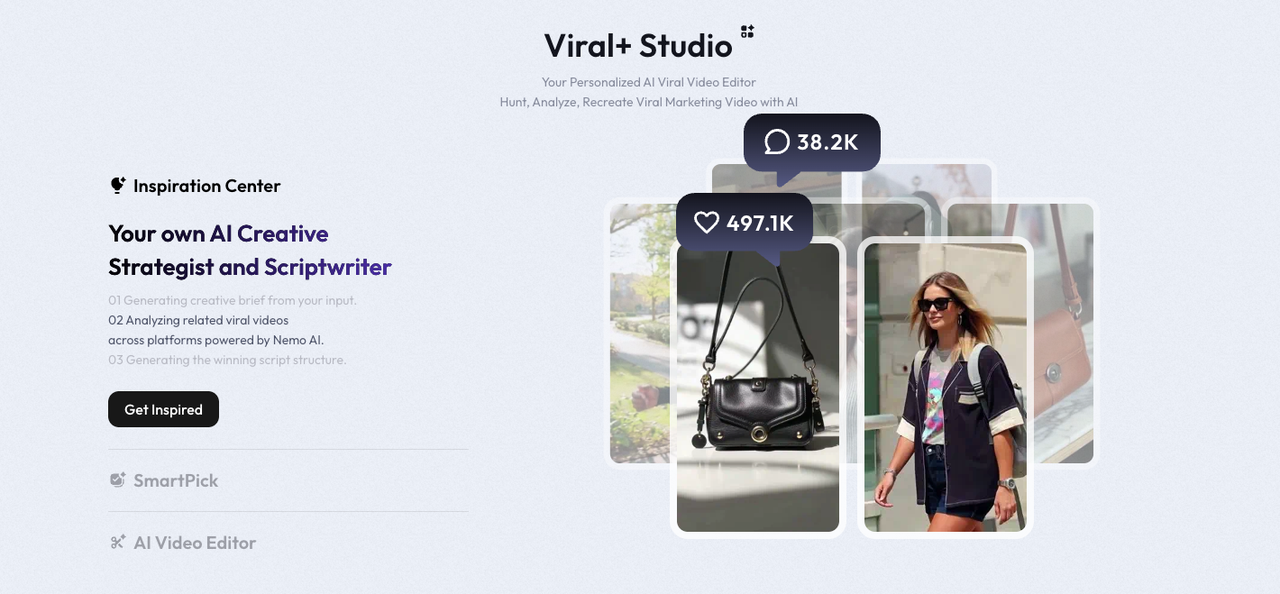
Here's where my workflow changed. My current method is feeding a viral example into Nemo to replicate its structure.
Why AI here matters: I don't need another flashy filter. Where I truly save time is rough cuts and structural automation.
My exact 7-step AI workflow (20 minutes to a publish-ready draft):
1. Grab the viral reference (1 min)
Copy the TikTok share link of the video you want to emulate. Aim for 15–35s pieces with clear beat changes.
2. Drop into Nemo → Auto-Detect Rhythm Points (3 min)
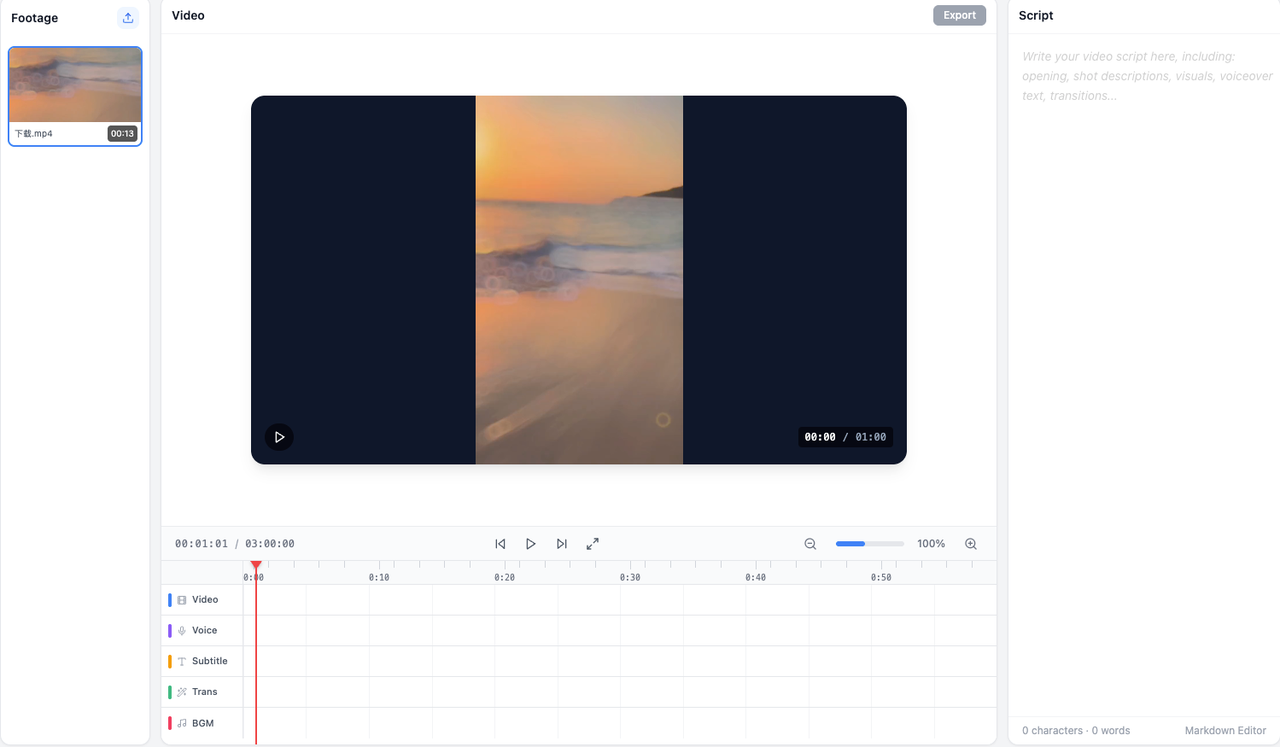
I let Nemo auto-detect rhythm points, doubling my speed. It marks cuts, text on/off times, and beat peaks. In my tests (n=20 videos), beat detection landed within ±3 frames 87% of the time.
3. Extract the structure (2 min)
Nemo labels sections as Hook, Body, Payoff, CTA. It also estimates reading time per caption line. This matters for SEO/watch time because readable pacing reduces early swipes.
4. Generate a reusable template (3 min)
Click "Create Structure Template." Nemo builds placeholders: B-Roll x8, A-Roll x2, Text slots x6, with timings. Save as "UGC-Listicle-30s-v1."
5. Fill with your assets (6–8 min)
Bulk imports your clips. Nemo auto-snap aligns to beats; you just swap a few. For text, I use these ready-made hooks:
"I tested [product] so you don't have to—3 3 honest takeaways."
"Stop doing X. Do this 10-second fix instead."
"I wasted $97 learning this. Here's the 30s version."
6. Export to CapCut (1 min)
Export EDL/XML or direct CapCut project (beta). On Desktop, it opens with your timeline built. I keep transitions as placeholders to finalize in CapCut.
7. Polish & publish (3–4 min)
Tweak 1–2 cuts that feel off. Replace any on-screen text that wraps awkwardly. Add one brand micro-element (sticker, sfx) so it doesn't scream "template."
Results from my December sprint:
Output jump: from 2–3 to 6–10 videos/day.
Time saved: ~9–14 minutes per video vs. manual template tweaking.
Accuracy: 80–88% beat alignment; I still fix a couple cuts per video.
Templates you can reuse this week (paste into your notes):
Rhythm: 0–2s Hook, 2–14s List (3 beats), 14–22s Proof mash, 22–28s Payoff, 28–30s CTA.
Text cadence: 7–9 words per line, 2 lines per beat, verbs front-loaded.
Shot list: A-Roll face cam x2, product B-Roll x4, overlay screenshots x3, reaction cutaway x1.
Limitations I've hit:
Highly cinematic edits (speed ramp + whip pan + mask) don't replicate perfectly—expect to hand-fix those.
TikTok's audio swaps can be desync by ~0.1–0.2s after uploading. I re-align in-app.
I haven't tested long-form (60–180s) yet; will update after January.
Who should skip AI here:
If you post 1 video/week and love micro-tweaking frames, you won't feel the time savings.
If you're like me, juggling 5–10 uploads/day, efficiency over perfection wins. Structure matters most, not special effects. AI handles 80% of the tedious work: you drive the ideas.
Real talk: If you're stuck in that 1-2 video per day grind and want to see if this rhythm-cloning thing actually works for you, Nemo has a free trial—I'd test it with 3-5 videos before deciding if the time savings match your workflow.